For Claude
Schedule posts from inside your chat.
Add Raspberry Post as a connector in Claude, and tell it what to post the same way you already ask it to write.
The URL you paste
https://raspberrypost.com/api/mcpSame URL for everyone. Sign-in and approval happen in your browser the first time.
Before you start: create a Raspberry Post account and stay signed in on this browser.
The connector posts to your accounts, so it has to know whose they are. If you are already signed in, the approval step below is one click. If you are not, sign in first — otherwise Claude opens a login page instead of the approval screen and the connection looks like it failed.
In Claude Desktop
- 1
Open the composer
The input box at the bottom of any chat.
- 2
Click + → Connectors → Add connector → Add custom connector
Add connector opens a submenu; the one you want is Add custom connector at the bottom. A dialog opens where you name the connector and paste a URL.
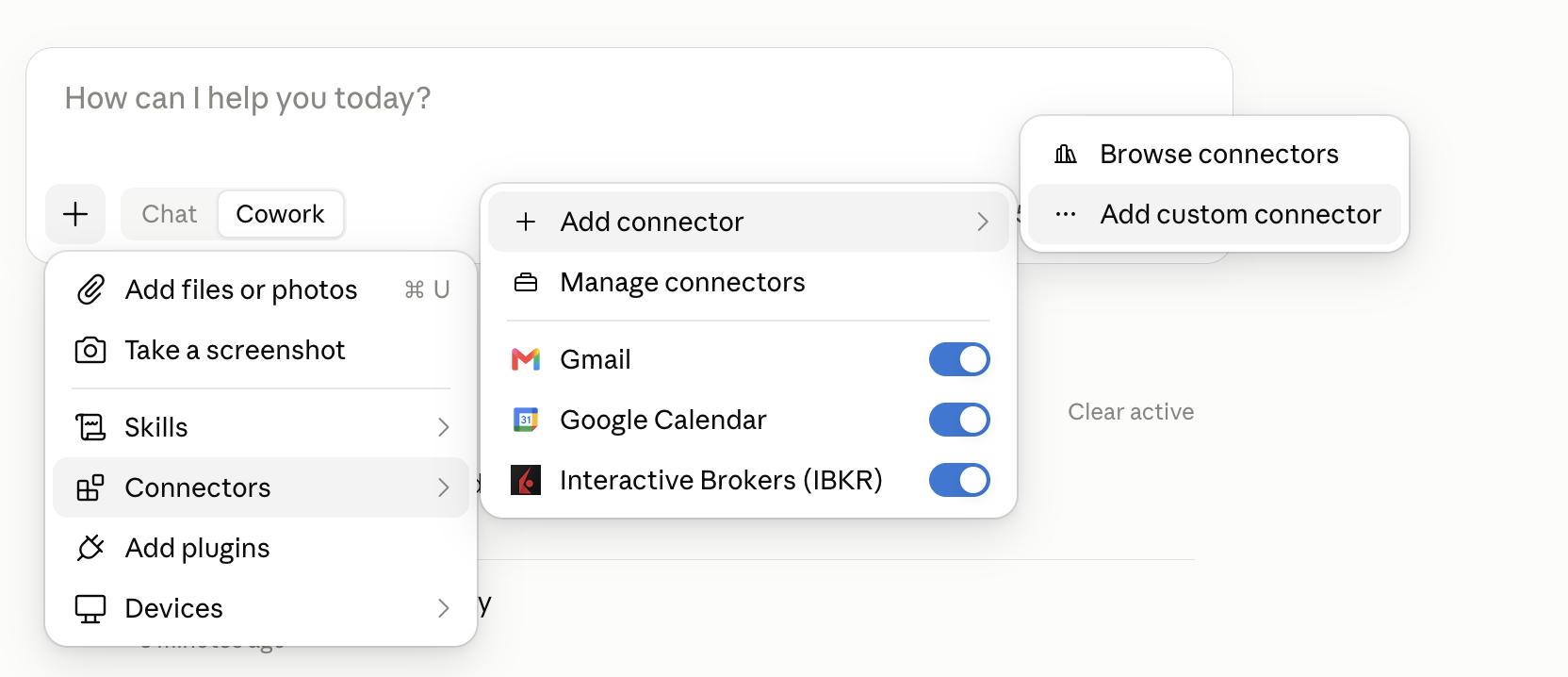
The + menu, with Add custom connector at the end of the chain - 3
Paste the URL
Type any name you like — it is only a label in your connectors list — then paste https://raspberrypost.com/api/mcp into Remote MCP server URL and click Continue. Leave the next screen on its defaults and click Add.
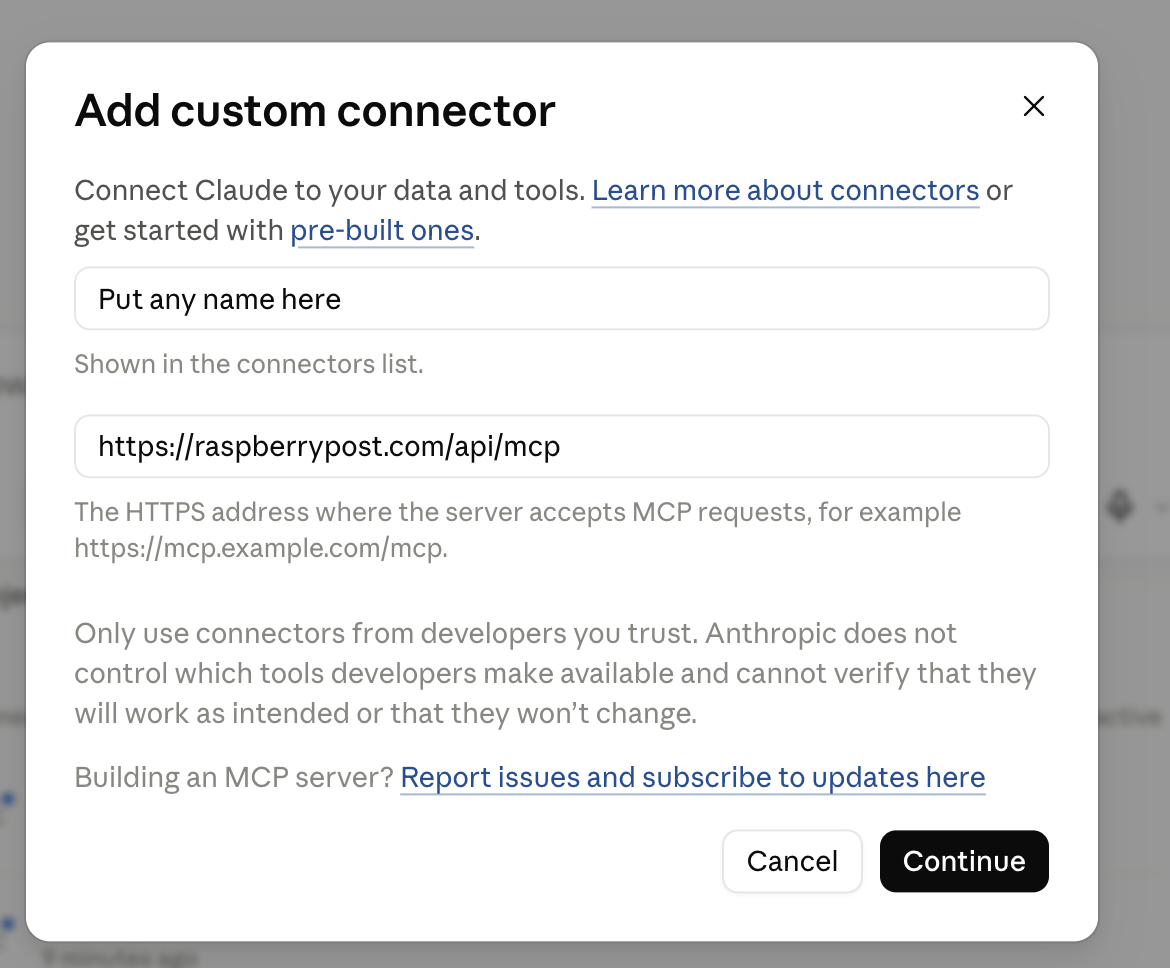
The dialog with a name and the connector URL filled in - 4
Sign in with Google, then Approve
Claude opens a tab on raspberrypost.com. Sign in if you are not signed in already, then click Approve on the consent screen. The tab closes itself.
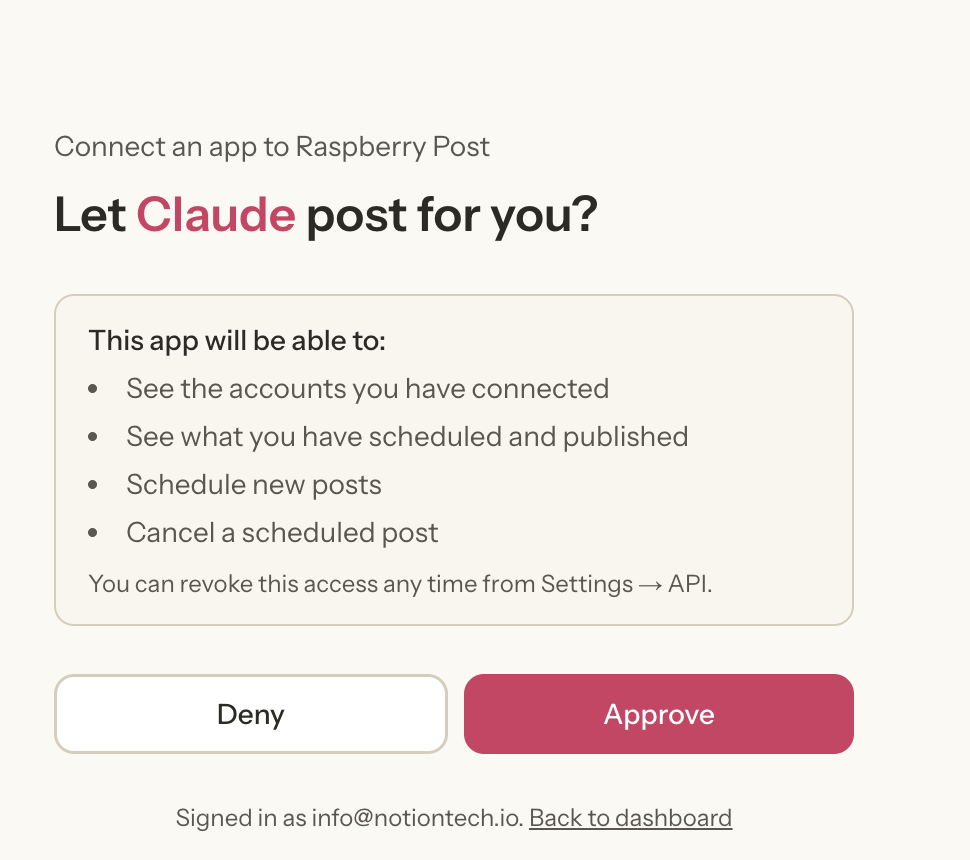
The Raspberry Post approval screen - 5
Try it in a new chat
Send: "What Instagram accounts do I have connected in Raspberry Post?" — Claude will call list_destinations and read them back.
What it can do
Read your destinations
See which Facebook Pages, Instagram accounts and YouTube channels you have connected — so it can pick the right one when you ask.
Read what you have scheduled
Summarise, count, or find a specific post by name so you can cancel or reschedule it.
Schedule a post
One upload, one or more destinations, at a chosen time. Each destination picks its own format, caption and media.
Cancel a scheduled post
Stop a post that has not gone out. A partially-published post is cancelled only where it had not yet reached.
Attaching media
The connector does not browse your Drive. Instead, share a file in Google Drive, copy the link, and paste it into your message. The model extracts the file id and passes it in. The file itself never leaves your Drive — the same rule as the app.
Revoking access
Dashboard → API lists every client that has approved. Revoke removes its tokens; the next call it makes returns 401 and it has to be added from scratch.
Something went wrong?
- Server didn't respond. The URL must be exactly https://raspberrypost.com/api/mcp, including https://.
- “This connector is not registered here”. Remove the connector in Claude and add it again — the browser walks a fresh registration.
- Approve loops back to the login screen. Your Raspberry Post session expired. Sign in again and retry.